This is part 5 in a series on machine learning. You might want to start at the beginning if you just arrived here.
Last time we looked at some modifications to gradient descent. Now it’s time to get hands on with a very basic linear regression experiment!
This tutorial assumes you are reasonably comfortable running commands in a shell and programming in python; because python is what we’ll be using from here on. In principle, machine learning can be performed in almost any programming language. Python and R are the most commonly used, and as I am familiar with Python but not R, the choice for me was quite straight-forward. If you enjoy religious debates then by all means look up some forum threads where people are comparing the two 🙂. Personally I think you should start off with whichever language you feel most comfortable with (and if you’re not familiar with either, then spend a week trying out each of them before deciding). Becoming proficient at machine learning is a greater challenge than becoming proficient at either language, so if you find a compelling need to switch languages once you have some experience then you will likely find it comparatively straight-forward to do so.
Install Miniconda
Whilst writing machine learning algorithms from scratch would be great fun, it would take us a long time to write efficient, reliable, high quality algorithms. Fortunately, people have created many algorithms in open source python packages such as numpy, scipy, and scikit-learn. It’s possible to manage these using tools such as pip but we’re going to use conda as it can install more than just python packages and it provides greater flexibility – such as the ability to have different environments each containing different python packages.
If you want to install everything including the kitchen sink then you can install Anaconda, which is conda plus hundreds of libraries.
We’re going to take a more minimalist approach by installing Miniconda, which is the very minimum that conda needs, followed by some specific dependencies that we need to run a simple linear regression. Miniconda comes in two versions – Miniconda2 uses python2 and Miniconda3 uses python3. Unless you have a strong preference I suggest you go with Miniconda3.
So the first step is to follow the instructions to install Miniconda on MacOS or Windows.
Set up an environment with the components we need
Now you have conda installed, but there are no machine learning libraries installed yet. We’re going to install them, plus something called Jupyter Notebook. Jupyter Notebook allows you to create documents that mix executable code with rich formatting such as markdown. These documents are ideal for data science, as you can include the results and analysis of your experiments alongside the code you used to create the results. They’re rather overkill for a simple tutorial, but becoming familiar with them early on will help you later in your career, so there’s no time like the present!
We’ll list our dependencies in a file that we’ll pass to conda to install them. Create a file called basic_environment.yml and paste the following into it.
name: basic
dependencies:
- notebook
- numpy
- pandas
- scikit-learn
- scipy
- seaborn
- pip:
  - jupyter-client
  - jupyter-console
  - jupyter-core
You now need to install the listed packages and their dependencies in what’s called a conda environment. Conda supports different environments which can each have their own versions of python, python packages, and so on.
$ conda env create -f <PATH_TO_BASIC_ENVIRONMENT.YML>
All being well, the output of the command will finish like the following:
# To activate this environment, use
#
#     $ conda activate basic
#
# To deactivate an active environment, use
#
#     $ conda deactivate
You might as well activate the environment you just created, so run the activate command that was printed to your console (eg $ conda activate basic).
Your command prompt should now be prefixed with (basic) , for example:
(basic) MacBook:Directory User$
To leave this environment, you can deactivate it using the command that was printed to your console (eg $ conda deactivate).
Run Jupyter Notebook
Whilst you’re in the basic environment, start Jupyter Notebook. Create a new directory to hold documents you’ll create as you follow this tutorial and then run:
(basic) $ jupyter notebook <PATH_TO_ML_DOCUMENT_DIRECTORY>
For example:
(basic) $ jupyter notebook ~/MachineLearning/Tutorials
The Jupyter environment runs in your browser, so at this point you’ll see a new browser window at an address like http://localhost:8888/tree. The page will look similar to this:
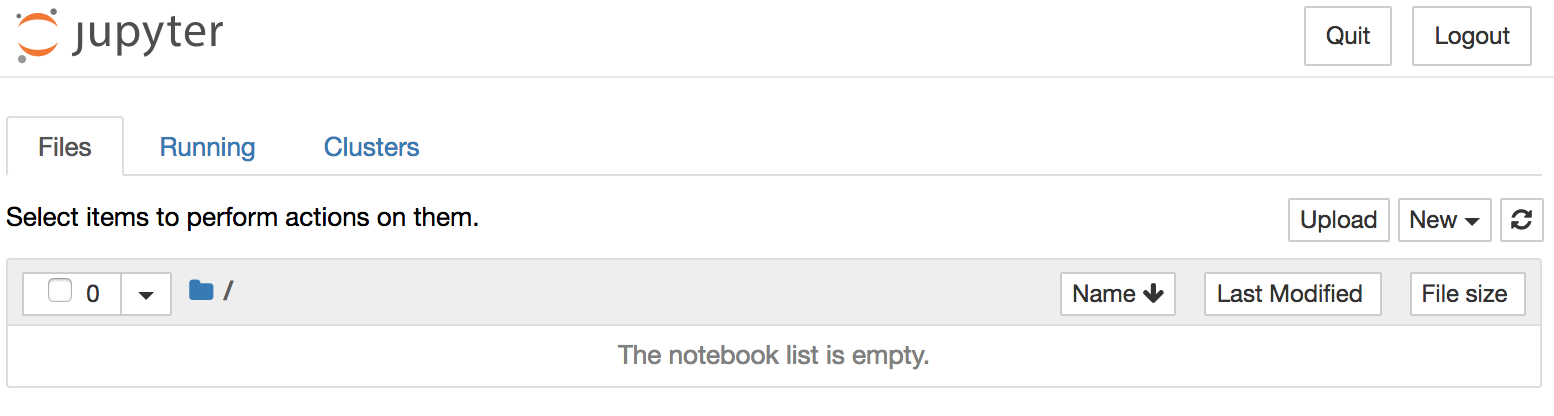
Take some time to look around, and I also suggest you take a look at this tutorial.
Create a notebook
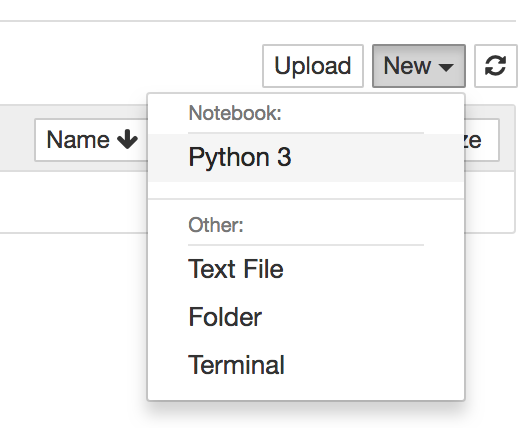
It’s now time to create a python notebook containing a linear regression experiment, so go to the New menu and select Python notebook as the file type:
A new tab will appear looking similar to this:
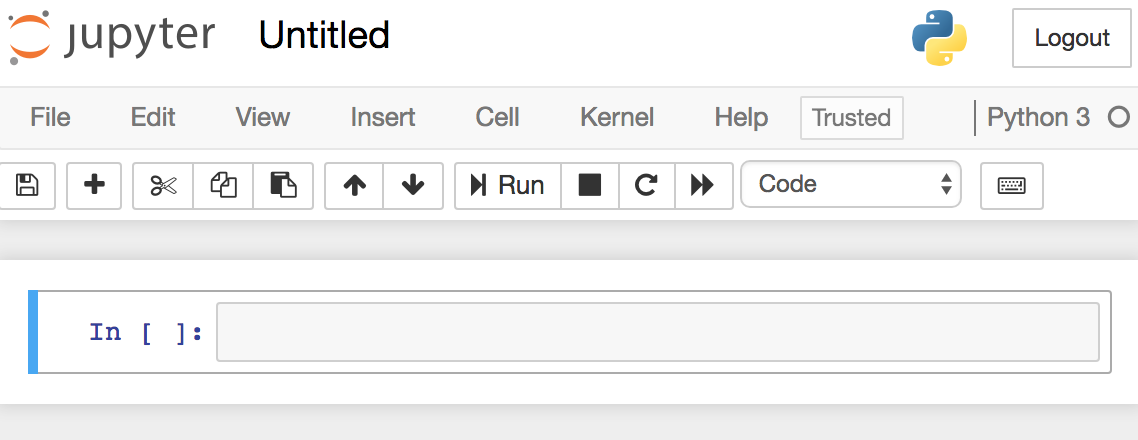
The contents of the file are broken into cells. Cells have different types – there are cells for code that will be executed plus the output of that code once it’s executed, cells containing markdown that can explain what is happening, and cells containing raw contents such as javascript that can modify the behaviour of the notebook itself (here is an interesting example). We’ll only concern ourselves with code cells (they’ll have “In” on the left side) and markdown cells (blank on the left side).
There’s one empty cell ready for you to type something in. “In” is shown on the left side, so it must be a code cell.
We want to start off our tutorial with a comment describing what we’re doing in this notebook, so go to the Cell menu then Cell Type > Markdown to change the cell to a markdown cell, and then copy in:
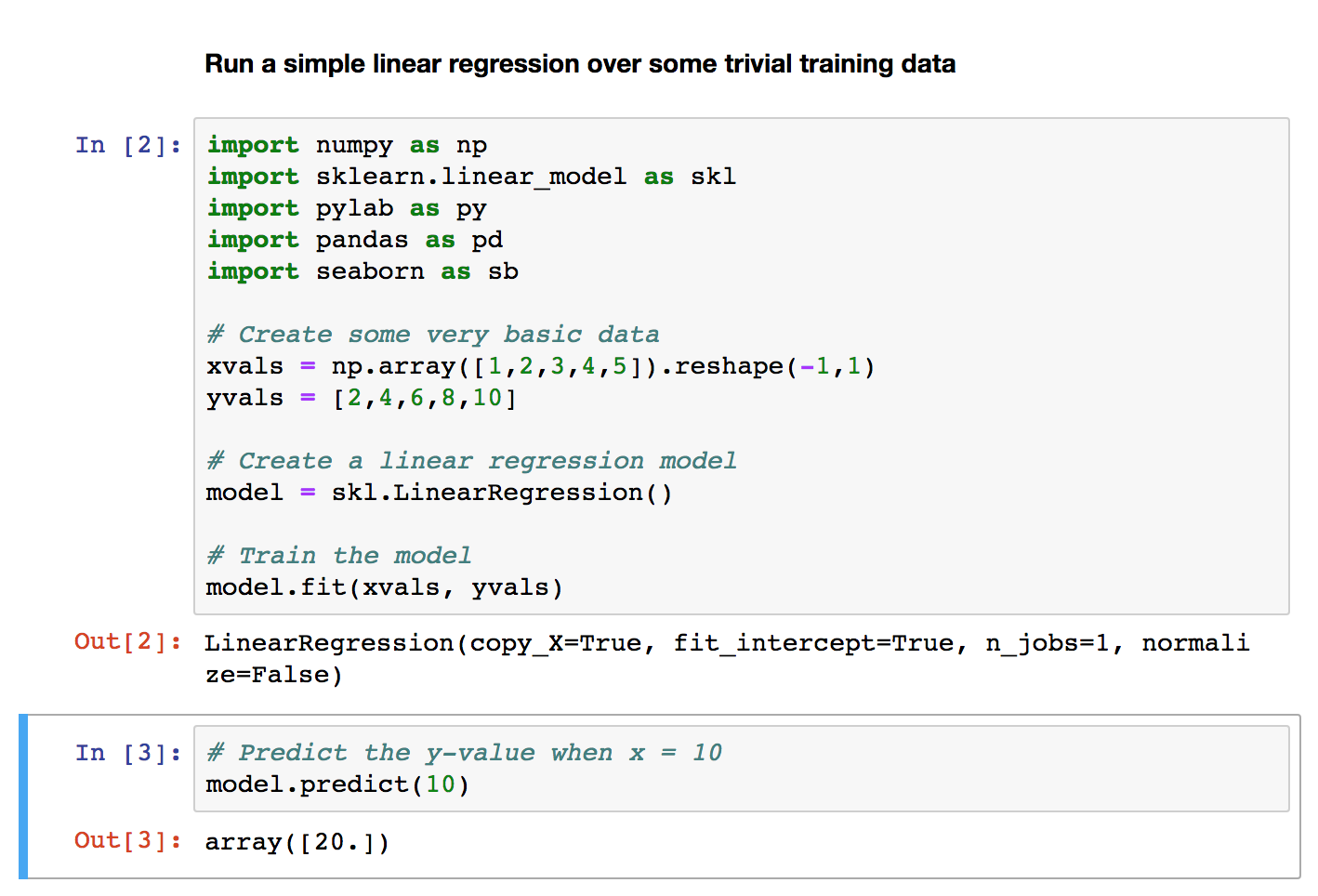
**Run a simple linear regression over some trivial training data**
Insert a new cell below by clicking the + on the toolbar. It defaults to a code cell. Copy in the following code:
import numpy as np
import sklearn.linear_model as skl
import pylab as py
import pandas as pd
import seaborn as sb

# Create some very basic data
xvals = np.array([1,2,3,4,5]).reshape(-1,1)
yvals = [2,4,6,8,10]

# Create a linear regression model
model = skl.LinearRegression()

# Train the model
model.fit(xvals, yvals)
In lines 1-5 we’re importing some common libraries for machine learning.
In lines 7-9 we define 5 labelled features, each with one independent variable (eg x=1), and one dependent variable (eg y=2). For each feature, y=2x. The independent variables need to be in a two-dimensional array – one row per feature and one column per independent variable. To simplify the code, the independent variables are defined in a one dimensional array. That is then changed to a two dimensional array by the reshape method.
The output of reshape is an array with the same number of dimensions as the number of parameters to the method. In this case we’re passing two parameters to reshape, so the output is a two dimensional array. The value of each parameters controls the size of the respective dimension. -1 is a special value that tells reshape to infer the size of that dimension based on the size of the input and the sizes of the other output dimensions. In this case, our input has 5 values and the second dimension of the output will be size 1. Thus the first dimension of the output will be size 5. And so xvals is assigned a two dimensional array with 5 rows and 1 column.
In lines 11-15 we create a linear regression model and train it on the labelled features.
Run the cell by clicking the run button on the toolbar. You’ll see the output of the final line of code – it appears on a line with “Out” on the left side followed by something like:
LinearRegression(copy_X=True, fit_intercept=True, n_jobs=1, normalize=False)
We’ve successfully created a model, so now we can use it to predict the y-value for an element it hasn’t seen before.
Create another new code cell and paste in the following:
# Predict the y-value when x = 10
model.predict(10)
The y-value ought to be 20. Run the cell and check that the model was trained correctly. If it was then you will see:
array([20.])
Our model worked!
At this point the notebook should look similar to this:
Congratulations on running a successful linear regression – now you can take a well-earned break before going on to run with some simple but real data!