This is part 8 in a series on machine learning. You might want to start at the beginning if you just arrived here.
Last time we covered some of the theory behind Naive Bayes classification and worked through a simple example. This time, we’ll use Naive Bayes to tackle a richer dataset.
The dataset we’ll use is The Breast Cancer Wisconsin (Diagnostic) Database, which is one of a few that are included with sklearn. It contains a number of features describing a few hundred breast tumour observations, together with a label indicating whether the tumour was benign or malignant. We’ll use an implementation of Naive Bayes called Gaussian Naive Bayes.
Gaussian Naive Bayes works with features that are continuous variables and assumes that they have a gaussian distribution (aka normal distribution). The classifier estimates the mean and standard deviation for each feature, which for feature  are written as
  and
and  respectively and then substitutes them into the equation for the probability density of the normal distribution:
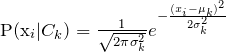
Many physical quantities have normal distributions, so Gaussian Naive Bayes can work quite well. Let’s give it a try.
Create a new Jupyter notebook and load the breast cancer data:
import numpy
import pandas
from sklearn.datasets import load_breast_cancer

cancer = load_breast_cancer()
First we need to get a feel for the data. Let’s look at the fields:
print(cancer.keys())
dict_keys(['data', 'target', 'target_names', 'DESCR', 'feature_names'])
(that’s how I’ll format output from here on)
DESCR looks like it could be helpful, let’s see what it says:
print(cancer.DESCR)
Breast Cancer Wisconsin (Diagnostic) Database
=============================================

Notes
-----
Data Set Characteristics:
    :Number of Instances: 569

    :Number of Attributes: 30 numeric, predictive attributes and the class
...
The data contains 569 rows (tumour observations), which each have 30 features plus an indication of whether the tumour is benign or malignant.
When working with a new dataset it’s a good idea to look at some of the data so you know what you’re working with. One way is to print out the first few rows.
data = numpy.c_[cancer.data, cancer.target]
columns = numpy.append(cancer.feature_names, ["target"])
frame = pandas.DataFrame(data, columns=columns)
frame.head()
On line 1 we take the two dimensional array containing the feature data (30 columns and 569 rows), and on each row we append the target (which is 0 for malignant or 1 for benign), creating another two dimensional array with 31 columns and 569 rows.
On line 2 we create a single array with the 31 column names.
On line 3 we feed those two arrays into a tabular data structure from the pandas library called a DataFrame.
On line 4 we access the header and first few rows in the table:
mean radius	mean texture	mean perimeter	mean area	mean smoothness	mean compactness	mean concavity	mean concave points	mean symmetry	mean fractal dimension	...	worst texture	worst perimeter	worst area	worst smoothness	worst compactness	worst concavity	worst concave points	worst symmetry	worst fractal dimension	target
0	17.99	10.38	122.80	1001.0	0.11840	0.27760	0.3001	0.14710	0.2419	0.07871	...	17.33	184.60	2019.0	0.1622	0.6656	0.7119	0.2654	0.4601	0.11890	0.0
1	20.57	17.77	132.90	1326.0	0.08474	0.07864	0.0869	0.07017	0.1812	0.05667	...	23.41	158.80	1956.0	0.1238	0.1866	0.2416	0.1860	0.2750	0.08902	0.0
2	19.69	21.25	130.00	1203.0	0.10960	0.15990	0.1974	0.12790	0.2069	0.05999	...	25.53	152.50	1709.0	0.1444	0.4245	0.4504	0.2430	0.3613	0.08758	0.0
3	11.42	20.38	77.58	386.1	0.14250	0.28390	0.2414	0.10520	0.2597	0.09744	...	26.50	98.87	567.7	0.2098	0.8663	0.6869	0.2575	0.6638	0.17300	0.0
4	20.29	14.34	135.10	1297.0	0.10030	0.13280	0.1980	0.10430	0.1809	0.05883	...	16.67	152.20	1575.0	0.1374	0.2050	0.4000	0.1625	0.2364	0.07678	0.0
5 rows × 31 columns
We can get additional information about the table
frame.info()
<class 'pandas.core.frame.DataFrame'>
RangeIndex: 569 entries, 0 to 568
Data columns (total 31 columns):
mean radius                569 non-null float64
mean texture               569 non-null float64
mean perimeter             569 non-null float64
mean area                  569 non-null float64
mean smoothness            569 non-null float64
mean compactness           569 non-null float64
mean concavity             569 non-null float64
mean concave points        569 non-null float64
mean symmetry              569 non-null float64
mean fractal dimension     569 non-null float64
radius error               569 non-null float64
texture error              569 non-null float64
perimeter error            569 non-null float64
area error                 569 non-null float64
smoothness error           569 non-null float64
compactness error          569 non-null float64
concavity error            569 non-null float64
concave points error       569 non-null float64
symmetry error             569 non-null float64
fractal dimension error    569 non-null float64
worst radius               569 non-null float64
worst texture              569 non-null float64
worst perimeter            569 non-null float64
worst area                 569 non-null float64
worst smoothness           569 non-null float64
worst compactness          569 non-null float64
worst concavity            569 non-null float64
worst concave points       569 non-null float64
worst symmetry             569 non-null float64
worst fractal dimension    569 non-null float64
target                     569 non-null float64
dtypes: float64(31)
memory usage: 137.9 KB
This appears to be a nice clean set of data. All the values are present and they are all in numeric format. In some datasets you’ll come across missing features and some of the features might need to be converted from text format into numeric format. But not here, so we can start trying to create a model.
from sklearn.naive_bayes import GaussianNB
from sklearn.model_selection import train_test_split
model = GaussianNB()
x_train, x_test, y_train, y_test = train_test_split(cancer.data, cancer.target)
model.fit(x_train, y_train)
model.score(x_test, y_test)
If you followed the worked example for linear regression then this should be self-explanatory, and the value ouput is the score of the trained model when it’s run over the test dataset:
0.9440559440559441
We have created a model with a 94% accuracy for this data in just a few minutes! Note that the score of your model will almost certainly be different from this, due to the random way the rows are divided into a training set and a test set.
It’s been almost too easy so far, so let’s visualize the data and learn some more techniques as we go. It’s fairly hard to graphically visualize a 30-dimensional data set, but if we could somehow reduce the data to 2 dimensions then we could create a 2D scatter plot of the rows and use different symbols to indicate things like whether the row is labelled as malignant or benign. A technique we can use to reduce the dimensions is called principal component analysis or PCA.
PCA selects a given number of principal components from the dataset – often, the chosen number of principal components is fewer than the number of features, though you can usually choose up to as many principal components as there are features. If we think of the features in the dataset as a set of orthogonal axes then the principal components are a different set of orthogonal axes. The principal components are calculated in such as way that the first principal component accounts for as much variability in the data as possible, and then each successive principal component accounts for as much of the remaining variability as possible.
As is often the case, a simple example should help clarify the effect of PCA.
Imagine a set of 5 points:
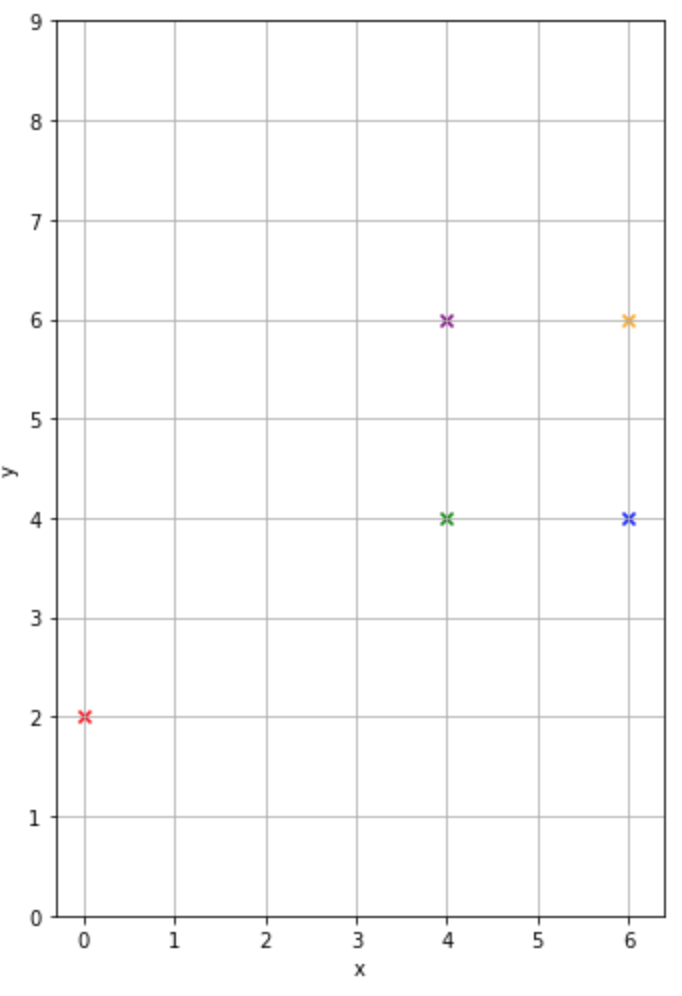
We want to perform PCA to extract the two principal components (an example where we’re not reducing the number of dimensions). We can do this roughly by eye by imagining a new axis that has the points as far as possible from each other when they are projected onto the axis. We might choose an axis that’s approximately parallel to the line connecting the red point and the yellow point. Like this purple line:
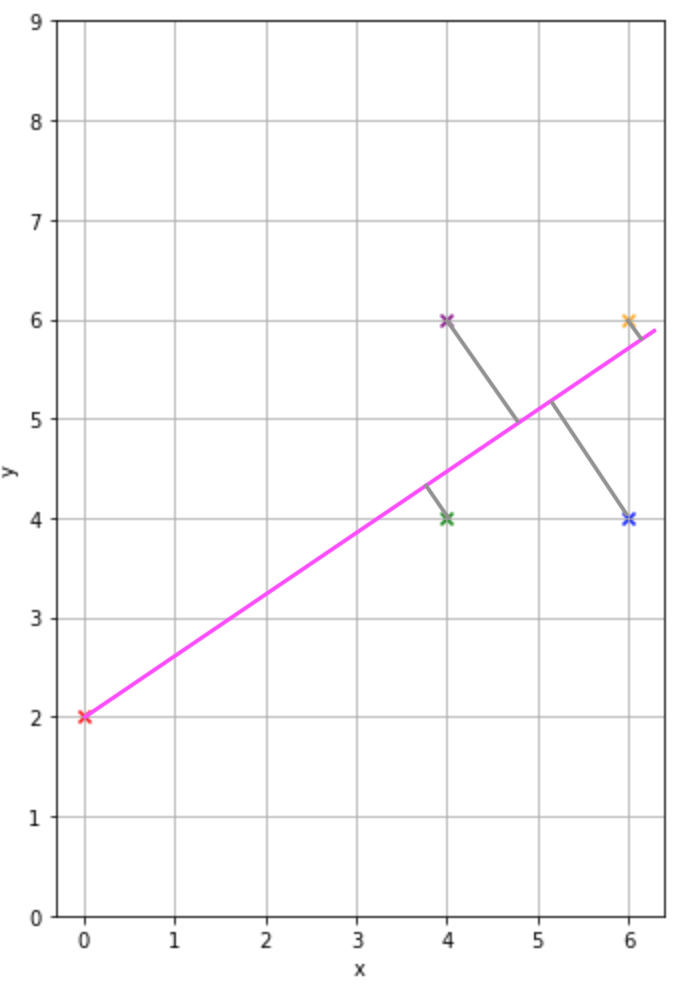
Once we’ve chosen that axis for our first principal component then we have no choice in the second principal component – it’s the axis perpendicular to the first principal component.
So we would end up with axes roughly like this:
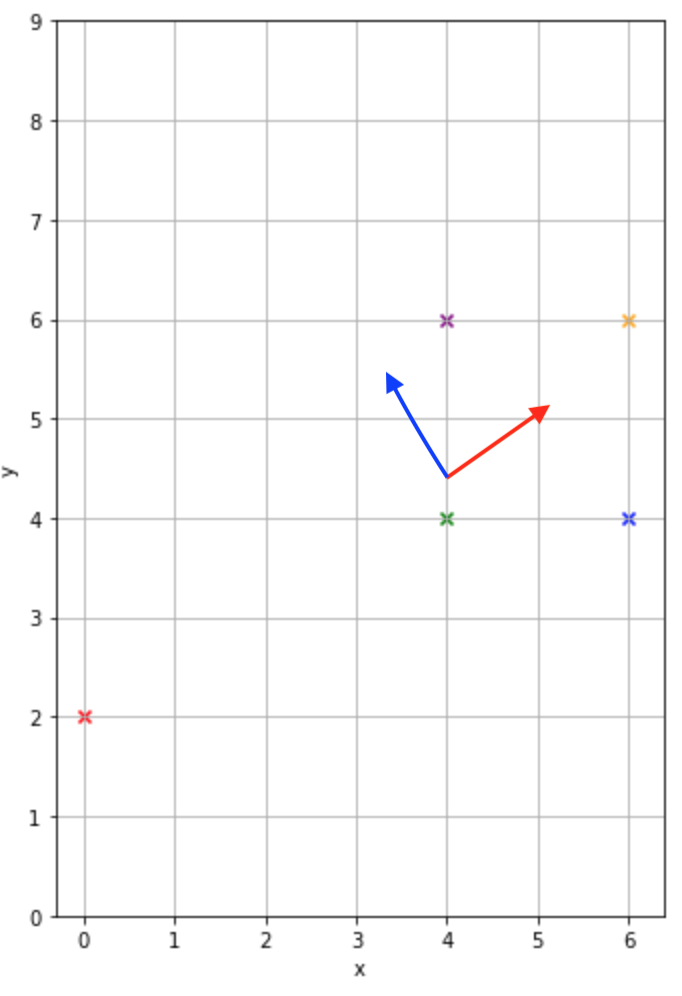
And that is pretty much what the PCA calculation gives us, although the direction of the axes is opposite to the ones we chose above:
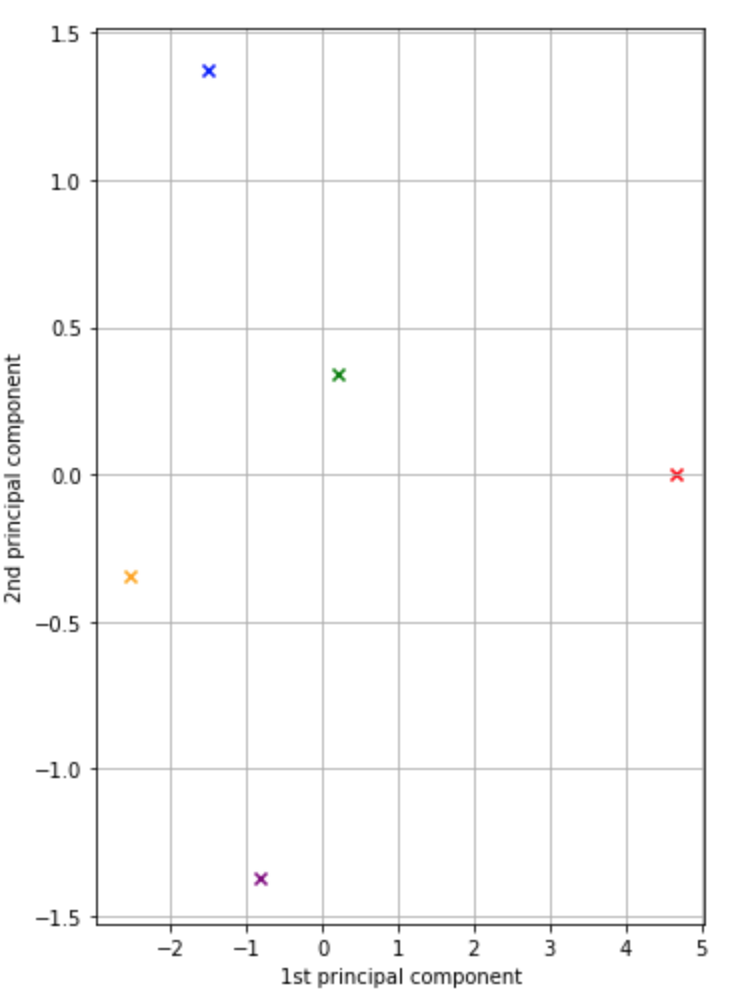
Now let’s run PCA on our data to reduce the number of dimensions to 2 and then run Gaussian Naive Bayes over it:
from sklearn.decomposition import PCA
from sklearn.pipeline import make_pipeline
pipeline = make_pipeline(PCA(n_components=2), GaussianNB())
pipeline.fit(x_train, y_train)
print(pipeline.score(x_test, y_test))
On line 3 we make a pipeline that allows us to run a sequence of steps over our data. The first step is PCA and the second is the Gaussian Naive Bayes. As we might expect, the score we get from this pipeline is worse than we achieved without PCA, and that’s because PCA has reduced the richness of the data we’re using to train our model:
0.9090909090909091
The score isn’t helped by the fact that we’ve forgotten a crucial step when running PCA. PCA is sensitive to the variability of the different features in our data. If one feature is more variable than another then the principal components will be “skewed” and will pay more attention to that feature than they should. For example, if one feature varies across a range from -1000 to 1000 then it will get more weight in the principal components than another feature that only varies across a range from -1 to 1. We can see whether this has happened by looking at the PCA components, which show the relation between each principal components and the features in the dataset:
pandas.set_option('display.max_columns', None)
pca = pipeline.named_steps['pca']
pandas.DataFrame(pca.components_,columns=cancer.feature_names,index = ['PC-1','PC-2']).head()
On line 1 we’re telling pandas to display all the columns from now on, as by default it only displays a certain number. On line 2 we fetch the PCA instance from the pipeline we created. Then on line 3 we generate a small table with one row per principal component, one column per feature, and the data values are the weights for each feature’s impact on the principal component.
	mean radius	mean texture	mean perimeter	mean area	mean smoothness	mean compactness	mean concavity	mean concave points	mean symmetry	mean fractal dimension	radius error	texture error	perimeter error	area error	smoothness error	compactness error	concavity error	concave points error	symmetry error	fractal dimension error	worst radius	worst texture	worst perimeter	worst area	worst smoothness	worst compactness	worst concavity	worst concave points	worst symmetry	worst fractal dimension
PC-1	0.005035	0.002126	0.034769	0.511907	0.000005	0.000040	0.000082	0.000048	0.000008	-0.000002	0.000339	-0.000054	0.002424	0.060503	-7.276269e-07	0.000006	0.000010	0.000004	-6.266251e-07	-2.539002e-09	0.007151	0.002959	0.049485	0.854715	0.000007	0.000100	0.000169	0.000074	0.000020	0.000002
PC-2	0.009060	-0.002038	0.062508	0.853642	-0.000008	0.000022	0.000113	0.000062	-0.000018	-0.000012	0.000094	0.000433	0.002052	0.029695	2.794228e-06	0.000020	0.000037	0.000011	1.516289e-05	9.531065e-07	-0.000555	-0.012348	0.001513	-0.516004	-0.000067	-0.000189	-0.000113	-0.000011	-0.000141	-0.000048
We can see that the weights for “mean area” and “worst area” are orders of magnitude greater than the other features. If we look back at the first few lines of the dataset we can see clearly why this is – these features seem to be in the size of 1000s whilst other features are in the 100s at best. To combat this discrepancy in scale, we must scale the source data so that the mean is 0 and the variance is 1 before performing the PCA. We can create a new pipeline with a StandardScalar step that does exactly what we want.
from sklearn.preprocessing import StandardScaler
pipeline_std = make_pipeline(StandardScaler(), PCA(n_components=2), GaussianNB())
pipeline_std.fit(x_train, y_train)
print(pipeline_std.score(x_test, y_test))
The score is a bit better:
0.916083916083916
and the PCA weights are much more even meaning that each feature is contributing to the principal components:
pca_std = pipeline_std.named_steps['pca']
pandas.DataFrame(pca_std.components_,columns=cancer.feature_names,index = ['PC-1','PC-2']).head()
	mean radius	mean texture	mean perimeter	mean area	mean smoothness	mean compactness	mean concavity	mean concave points	mean symmetry	mean fractal dimension	radius error	texture error	perimeter error	area error	smoothness error	compactness error	concavity error	concave points error	symmetry error	fractal dimension error	worst radius	worst texture	worst perimeter	worst area	worst smoothness	worst compactness	worst concavity	worst concave points	worst symmetry	worst fractal dimension
PC-1	0.220289	0.099860	0.228631	0.223381	0.141773	0.238899	0.257347	0.259667	0.139932	0.065456	0.205228	0.020860	0.211909	0.200508	0.017641	0.176673	0.153938	0.186969	0.052772	0.108402	0.227322	0.100396	0.236573	0.224965	0.126756	0.205879	0.227476	0.249059	0.122302	0.129396
PC-2	-0.233200	-0.054674	-0.214349	-0.229527	0.172894	0.153632	0.068701	-0.038817	0.182442	0.369995	-0.120279	0.085482	-0.101084	-0.160078	0.195520	0.231695	0.208570	0.129784	0.160980	0.287256	-0.221963	-0.040722	-0.200252	-0.219975	0.167675	0.150092	0.112670	-0.012332	0.125231	0.277861
Now all of this PCA processing was simply so that we could plot some of the data, so let’s do that with our newly discovered principal components. We’ll plot both the unscaled and scaled values, as this shows how the scaled values generate a cleaner pair of principal components.
%matplotlib inline
import matplotlib.pyplot as plt
scaler = pipeline_std.named_steps['standardscaler']
x_train_std = pca_std.transform(scaler.transform(x_train))

fig, (ax1, ax2) = plt.subplots(ncols=2, figsize=(10, 7))

for t, c, m, l in zip((0, 1), ('red', 'green'), ('x', '+'), ('malignant', 'benign')):
    ax1.scatter(x_train[y_train == t, 0], x_train[y_train == t, 1],
                color=c,
                label=l,
                alpha=0.5,
                marker=m
                )
    ax2.scatter(x_train_std[y_train == t, 0], x_train_std[y_train == t, 1],
                color=c,
                label=l,
                alpha=0.5,
                marker=m
                )

ax1.set_title('Training dataset after PCA')
ax2.set_title('Standardized training dataset after PCA')

for ax in (ax1, ax2):
    ax.set_xlabel('1st principal component')
    ax.set_ylabel('2nd principal component')
    ax.legend(loc='upper right')
    ax.grid()

plt.tight_layout()

plt.show()
On line 1 we tell Jupyter to display the output from matplotlib (the library we’ll use for plotting) inline in the notebook.
On lines 4-5 we scale the training data as we’ll need this for our second graph.
Line 7 sets up a figure with two graphs.
Line 9 prepares a loop that’ll run twice, once with t=0, c=red, m=x and l=malignant, and once with t=1, c=green, m=+ and l=benign.
Each time the loop runs, lines 12 and 18 add points to each graph if they match the condition that the training value equals t. Points that are added get the colour, marker shape and label that we defined when creating the loop.
Lines 23 onward prepare other parameters for the graphs and finally display them, at which point we get this:
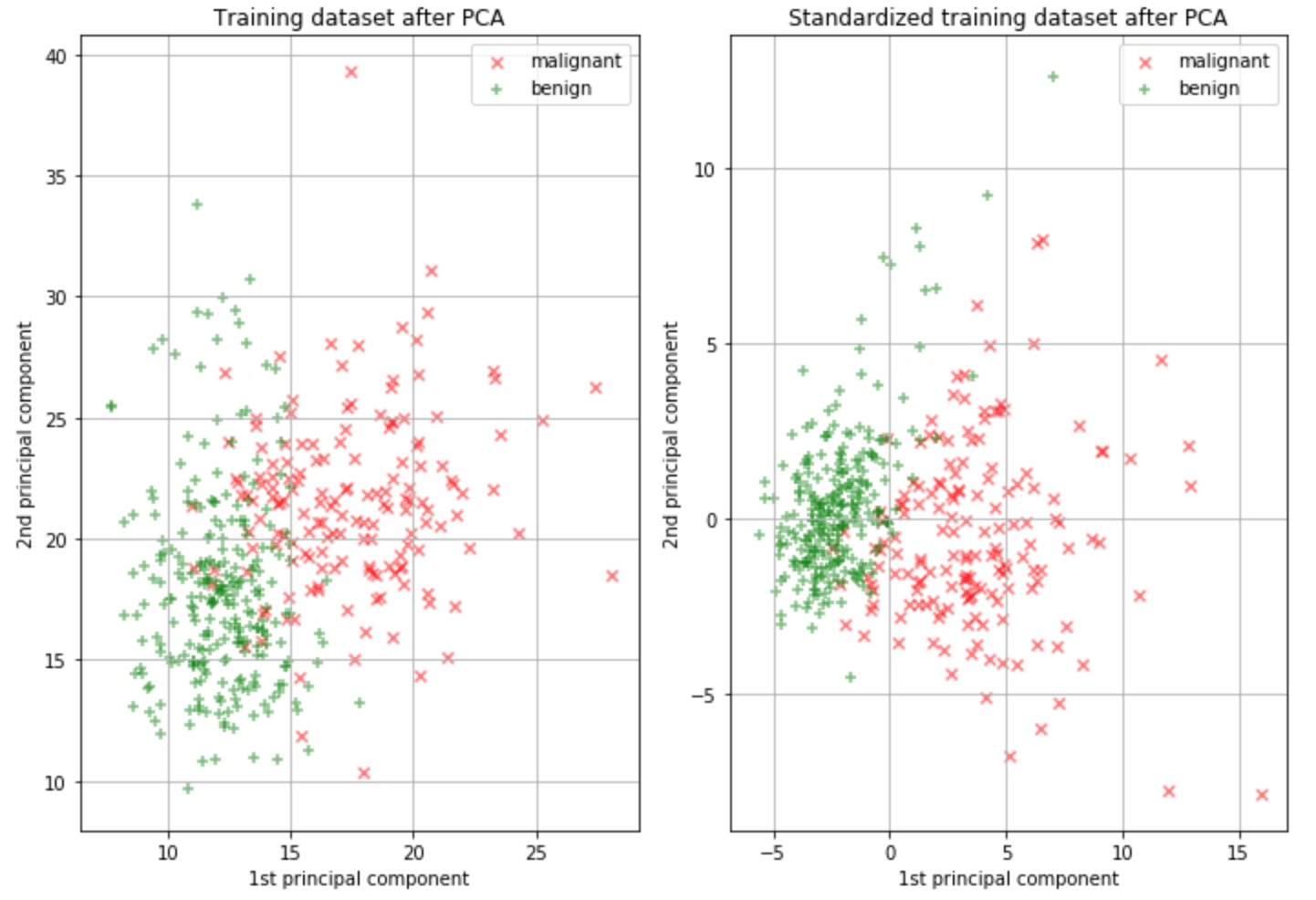
On the left is the unscaled data. You can see quite a lot of overlap between the malignant and benign subsets of data. This indicates that the contribution of the area features to the principal components is much greater than their contribution whether or not a tumour in the dataset is labelled as malignant. On the right, the scaled data clearly shows less overlap, which helps explain the higher score.
We covered quite a lot of ground in this post, hope you enjoyed following along. Stay tuned for the next post in the series!