I wanted to create a second WordPress site, running on the same server as the first, with a different domain name.
The WordPress documentation says that sites can have different subdomains (eg site1.domain.com and site2.domain.com) or subdirectories (eg domain.com/site1 and domain.com/site2).
This isn’t the whole truth. Sites can have different domains (eg domain1.com and domain2.com) if you jump through a teeny tiny hurdle to do so.
Follow the instructions, choosing the sub-domain option. When it comes to creating your second site, you’ll see that you can’t do what you want, which is to select a completely new domain for the new site. Don’t worry, in the next step you’ll have free reign to pick whatever URL you want. For now, pick a temporary subdomain like newsite.
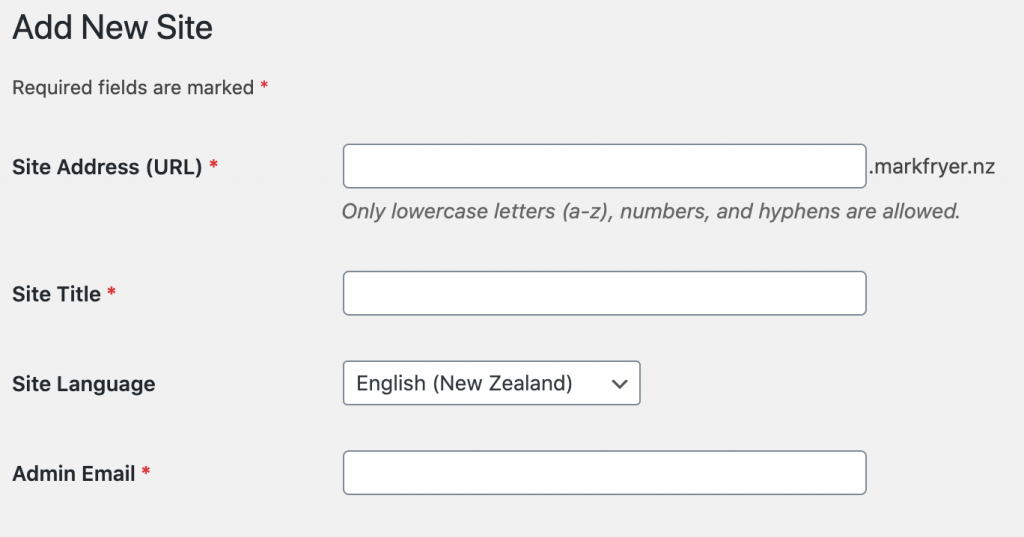
Once you’ve added the site, you can go and edit it, and now choose the complete URL:
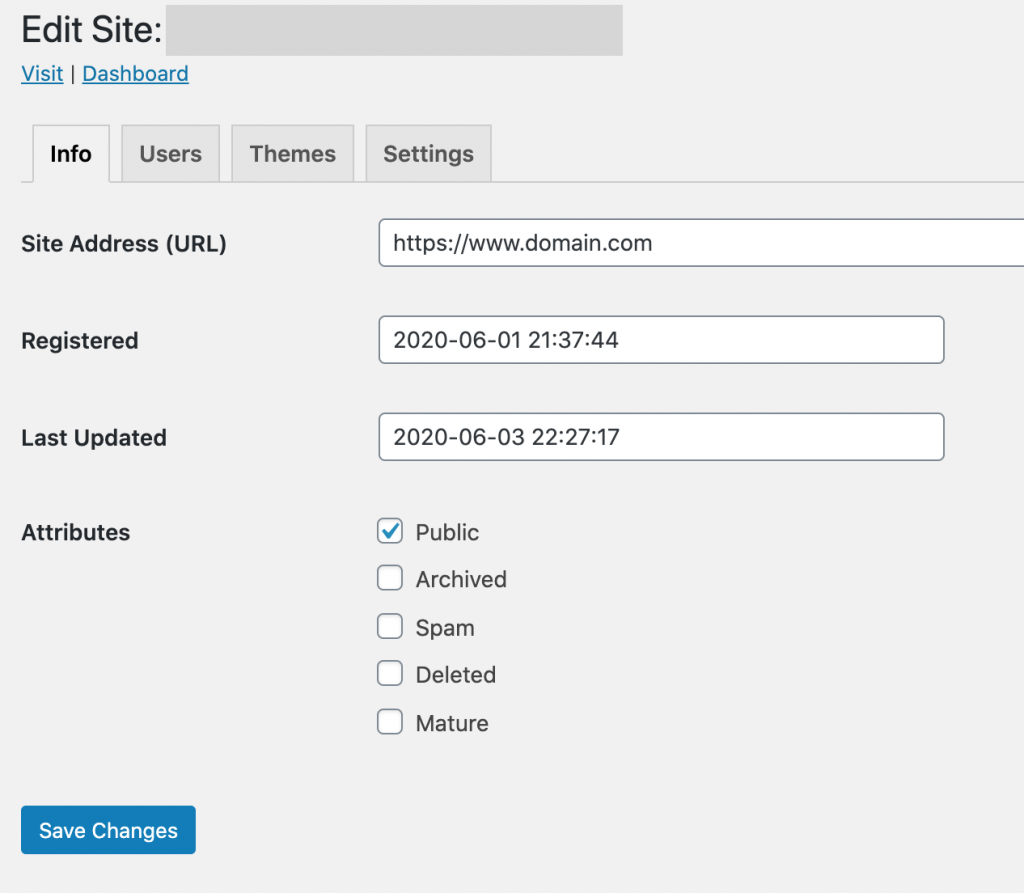
Why WordPress make you jump through this hoop I have no idea.
Having set up a second site, I wanted to test the HTTPS with a self-signed certificate. I use Let’s Encrypt to create my production SSL certificates, but they require that your site is live. In this case, the DNS for my new domain was still pointing to its old location and I didn’t want to switch the DNS across until I knew I could get the SSL certificate configured quickly.
Edit your local hosts file so that your computer hits the new site.
$ sudo vi /etc/hosts

...

1.2.3.4            www.domain.com
1.2.3.4            domain.com
Create a self-signed certificate.
$ vi req.conf

...

[req]
distinguished_name = req_distinguished_name
x509_extensions = v3_req
prompt = no
[req_distinguished_name]
CN = www.domain.com
[v3_req]
keyUsage = keyEncipherment, dataEncipherment, digitalSignature
extendedKeyUsage = serverAuth
subjectAltName = @alt_names
[alt_names]
DNS.1 = domain.com

$ openssl req -x509 -nodes -days 730 -newkey rsa:2048 -keyout privkey.pem -out cert.pem -config req.conf -extensions 'v3_req'

$ openssl x509 -in cert.pem -text
(and check that the output looks like you'd expect)
Upload cert.pem and privkey.pem to your server (they are plain text so it can be easiest to copy and paste their contents in an SSH session). Then configure apache to use them.
$ vi /etc/apache2/sites-available/000-default-le-ssl.conf

...
(add the following section before the final </IfModule>)

<VirtualHost *:443>
 ServerName www.domain.com
 ServerAlias domain.com
 DocumentRoot /var/www/html
        <Directory /var/www/html/>
            Options FollowSymLinks
            AllowOverride All
            Require all granted
        </Directory>
 SSLEngine on
 SSLCertificateFile /path/to/cert.pem
 SSLCertificateKeyFile /path/to/privkey.pem
</VirtualHost>

$ apachectl configtest
$ apachctl restart
You’re now ready to visit the site in your browser. You’ll get a security warning, which is a relief as browsers shouldn’t trust your self-signed certificate, but in this case it’s safe to proceed anyway.
If everything is working, you’re ready to switch the DNS across and use Let’s Encrypt for real:
$ certbot certonly --apache -d domain.com -d www.domain.com --dry-run
$ certbot --apache -d domain.com -d www.domain.com
And force all traffic to use HTTPS:
$ vi /etc/apache2/sites-available/000-default.conf

...

# Remove the old rewrite rule that only applied to the original site
# RewriteCond %{SERVER_NAME} =domain1.com [OR]
# RewriteCond %{SERVER_NAME} =www.domain1.com
# RewriteRule ^ https://%{SERVER_NAME}%{REQUEST_URI} [END,NE,R=permanent]

# Add rewrite rules to force traffic to both sites to be HTTPS
RewriteCond %{SERVER_NAME} =domain1.com [OR]
RewriteCond %{SERVER_NAME} =domain2.com
RewriteRule ^ https://www.%{SERVER_NAME}%{REQUEST_URI} [END,NE,R=permanent]
RewriteCond %{SERVER_NAME} =www.domain1.com [OR]
RewriteCond %{SERVER_NAME} =www.domain2.com
RewriteRule ^ https://%{SERVER_NAME}%{REQUEST_URI} [END,NE,R=permanent]

$ apachectl configtest
$ apachectl restart